Task picker

Your repository's ai/tasks/ directory holds executable task files — self-contained instruction sets like build-a-feature.md or work-an-issue.md that an agent can be told to run. The task picker lists them so you can drop one onto the command line without typing its path by hand.
The Ctrl+A picker
Ctrl+A (or the tasks command) opens a window listing the task files, with the task files in a directory listed first and its subdirectories last, each group sorted alphabetically. So the runnable tasks sit at the top and any subdirectory collects beneath them — expand one (→ or Return) to see the task files inside it:
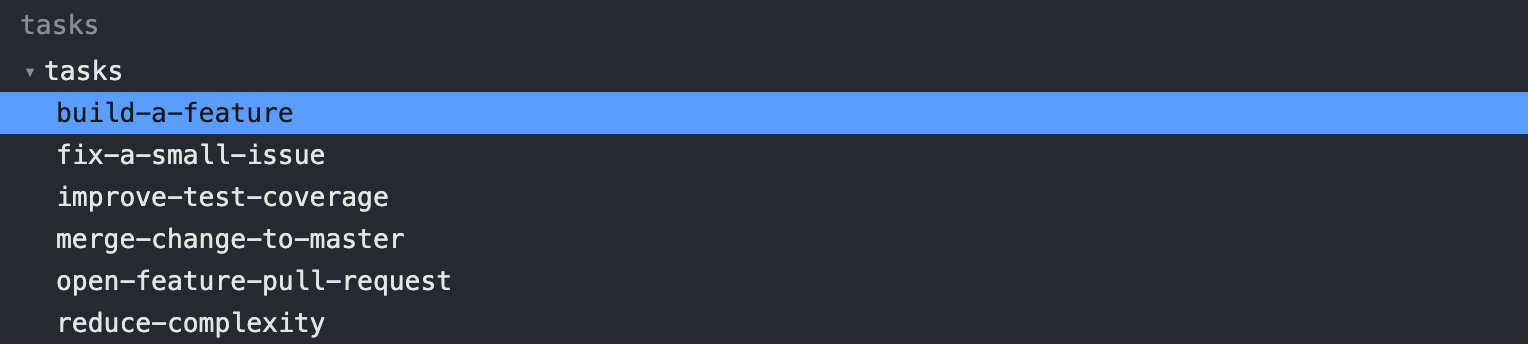
↑/↓ move the selection, Return on a file row inserts execute ./ai/tasks/<filename> into the command line at the cursor, and Escape closes without changing anything. A row can also be clicked, which does the same as Return. With no task files present, the window shows (no tasks).
Unlike the history picker, Return here does not run the command immediately. It inserts the command at the cursor — leaving any text you'd already typed intact, with the cursor just after the inserted command — so you can supplement it (say, appending extra instructions) or edit it before pressing Return yourself to actually run it.
What gets listed
Only .md files under ai/ are shown, recursing into subdirectories — ai/guidelines/ and ai/personas/ are left out since they hold binding docs and monitor personas, not runnable tasks. The list is read fresh each time the picker opens, so a task file you add, rename, or remove shows up right away.
Building a multi-stage workflow
Task files can chain together into a larger loop — one that plans work, hardens the plan, then executes it — by having each stage read and write the same set of project files. See Product development workflow for a worked example.