Tabs
Every tab is an independent workspace: its own transcript, its own command history, its own shell and working directory. Switching tabs never loses anything — a command running in one tab keeps running while you work in another, and each tab's scroll position and history stay where you left them.
A session starts with a single janus tab. New tabs are created on demand — agent tabs with the agent command (below), and view tabs by opening files, pages, or harnesses (see Tab Types).
A left and right sidebar flank the tab area, hidden until something is docked into them. Three kinds of tab can dock — the file navigator, the notifications feed, and the schedules tab — each with its own left/right form (files left, notifications right, schedules left) that opens or moves it straight into a sidebar. Drag the up/down-arrow button at the right of a sidebar's tab gutter to resize it. A sidebar holds at most one docked tab of each kind; docking a second tab of the same kind into an occupied side sends the first back to the center strip, but different kinds share the sidebar side by side.
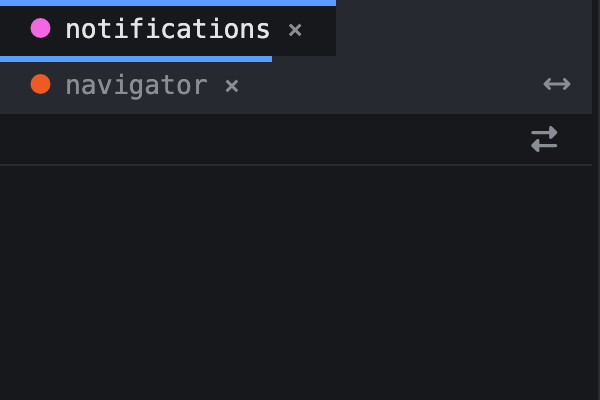
When a sidebar holds more than one docked tab, it shows its own small tab strip above the visible one — one entry per docked tab, each with its own × close button. Clicking an entry switches which docked tab is visible; double-clicking its label opens the same inline rename control as any tab in the center strip. Which entry is visible is only ever remembered on your screen — it resets the next time you launch or relaunch the app.
A docked tab is never the active tab. Docking the active tab moves focus to the nearest central tab, and undocking it makes it active again. Tab-cycling commands skip docked tabs. A docked tab leaves the central strip completely and returns to its reordered position in its group when you undock it. Dragging a sidebar tab label reorders docked tabs within that sidebar without docking, undocking, or moving the tab to another strip. The sidebar entry's × is its only direct close button. Typing close cannot target a docked tab, but close <label> still works.
Sidebar visibility is derived from its contents. An empty sidebar cannot be shown, and a docked tab does not keep the app alive: closing the last non-docked tab still quits. Dragging a sidebar's resize control changes its width within a minimum and roughly half the viewport. Sidebar width and dock placement reset on relaunch and are never persisted.

Creating agent tabs
agent           create a tab with a random unused name
agent bilal     create a tab named "bilal"
The new tab is focused immediately. Names are always lowercased, and each must be unique — reusing one prints Agent "<name>" is already active. and creates nothing. Random names come from a pool of 52 (see Agents); if every pool name is taken, bare agent prints All agent names are in use.
Reading the tab strip
The strip tells you what every tab is doing without switching to it. Three signals matter:
- The colored dot. Every tab gets a dot color picked to stand apart from the colors already on screen, so adjacent tabs are easy to tell apart. The colored band along the top of a tab is its group.
- A blinking dot means busy. While a tab's agent is working — a shell command, an agent turn, anything in flight — its dot blinks on and off. It settles back to a steady fill when the work finishes.
- A flag icon means unread output. When a tab that is not visible in either pane receives new content — a message from another agent, a shell command finishing, agent output — a flag badge appears on it. Selecting it clears the flag.
The active tab is also highlighted: full-strength text on the content background, while inactive tabs are muted.
Working in two panes
Action tabs have a Split button at the right edge of their metadata header. Click it to move that tab into a second pane beside the first one. Each pane gets its own tab strip and keeps one tab visible; click anywhere in a pane to make it the focused one. The focused pane keeps its tab-colored left border; the other pane's border turns muted gray. New tabs opened from an action tab join that tab's pane.
When both panes show agent tabs, both keep their command lines and the same metadata buttons. The command line in the unfocused pane stays visible without stealing keyboard focus. Click it to focus that pane, then type normally. Pickers, transcript search, and dialogs stay with the focused pane.
Drag the divider between the panes to resize them. The divider starts in the middle and stops at 15% or 85% of the center area, so neither pane can disappear accidentally. Moving, closing, or docking the last tab from one side collapses the split back to a single strip.
Dragging within a tab strip and Ctrl+← / Ctrl+→ reorder tabs only inside the focused pane. To move a tab between panes, drag its label onto the other pane's tab strip. The tab keeps its place in the overall tab order, regardless of which destination label you release it over. Global navigation still crosses both panes: Shift+← / Shift+→, next, and Ctrl+G move through every central action tab. Sidebars remain outside the split, and the lower reporting area stays full width.
The tab metadata row
Agent and harness tabs show a small metadata row above their body: the tab's working directory, followed by an emoji for each active flag (📦 workspaced, ⚡ auto-permitting). A tab running on a remote host shows that host in a chip before the working directory; hover over it to see the full remote destination. The chip stays visible when an interactive command such as htop takes over the tab. Every action button stays grouped at the right edge of that row. Agent and harness tabs carry a 📁 file-navigator button there. Its tooltip is "Open file navigator in this workspace" on a workspaced tab and "Open file navigator here" otherwise. Clicking it opens a file navigator rooted at that tab's own working directory, docked in the left sidebar by default, or retargets an already-open navigator to that directory. On a remote tab it browses the remote workspace over the connection that is already open. Shell tabs don't show the 📁 button.
Next to it, agent and harness tabs also carry a ➕ button. Its tooltip is "New agent in this workspace" on a workspaced tab and "New agent here" otherwise. Clicking it creates a new, auto-named agent tab rooted at the same working directory, joins it to the same group, and focuses it right away: the one-click version of typing agent, except the new tab starts where you clicked instead of the server's own directory. Nothing happens if there's no known working directory to start from, and shell tabs don't show this button either. If every agent name is already taken, you get All agent names are in use. in the notifications feed instead of the source tab, since a harness tab has no transcript of its own to report into. When the source tab is itself workspaced (📦), the new agent joins that same clone instead of creating another one. On a remote tab it also reuses the existing SSH connection, so there is no second sign-in prompt.
Agent tabs also carry a 📋 button (tooltip "Open transcript"). Clicking it writes the tab's full transcript, every command and its output, to a plain-text file and opens that file in an editor tab, the same way a screen capture or a monitor snapshot does elsewhere in the app. It's a no-op on a tab with nothing in its transcript yet.
Harness tabs carry the same 📋 button, but clicking it opens the harness's session transcript instead — the same file harness transcript opens (see Harness) — since a harness tab has no command transcript of its own. It's a no-op when the harness has no session transcript available yet.
Text in metadata rows and headers can be selected with the mouse and copied, including paths and other details shown by agent, file, editor, image, Markdown, page, and monitor tabs.

Switching and reordering
Shift+← / Shift+→ cycle through tabs; the next command switches to the next tab. Ctrl+← / Ctrl+→ move the current tab one position left or right within its own group (see Tab groups). You can also drag a tab label to reorder it in the same strip, or drop it on the other center strip when you're working in two panes. With several tabs open, the tab navigator (Ctrl+G) jumps straight to any of them by typing part of its label or number.
Renaming a tab

rename <newname> gives the current tab a display alias — a name shown in the strip in place of its real label. Bare rename clears the alias. You can also double-click the label of the active tab and type a new name in place; Enter commits, Escape cancels.
An alias changes what you see, not what you can type: commands that target a tab by name take either one. msg, broadcast, send, queue, close/exit, schedule … in <tab>, and monitor targets all match the alias or the original label, ignoring case. The rename confirmation says routing still uses the label, and internally it does — that's the name a message is delivered under, the one a transcript records, and the one state shows — but you don't have to remember it to address the tab.
One place still shows you the original: pressing Tab to complete a target offers labels, never aliases. Aliases survive --relaunch.
Closing tabs
close             close the current tab
close bilal       close the tab named "bilal" (case-insensitive)
close page-2      close the second embedded web page by its name
exit is an alias of close. Closing a tab tears down everything used only by that tab — its shell, agent session, and scheduled commands — and focus moves to an adjacent tab. A shared workspace clone and remote connection stay alive while another joined tab still uses them, then close when their last user does.
Closing the last remaining tab quits the app, so it always asks first. close, exit, the tab strip's × button, Cmd+W/Ctrl+W, and a view tab's own × all bring up the quit confirmation dialog there, exactly as if you'd typed quit. A docked sidebar tab doesn't count as one of your remaining tabs. The only thing that quits without asking is the tab's own process exiting on its own. If no tab matches the name you gave, an error is reported.
How paths are shown: $root
The app shortens project paths to $root in its prompts, panels, headers, and status messages:
$root/                  = /Users/name/dev/project
$root/src/cli.ts        = /Users/name/dev/project/src/cli.ts
$root/workspace/emrah   = a workspaced agent's clone, inside the project
The hidden .janissary state directory folds into the root, so a workspaced clone appears as $root/workspace/emrah even though its full path includes .janissary. The most specific matching prefix wins. The root directory itself appears as $root/. Paths elsewhere under your home directory shorten to ~.
The shortcut appears in the working directory beside a command prompt, the connections panel, an editor tab's metadata header, and app status messages that name a path. It is display-only. The underlying absolute paths do not change, and the raw output of your shell commands is never rewritten.
You can also type $root or ~ at the start of a path passed to open, edit, or files:
open $root/src/cli.ts
edit ~/notes.txt
files $root
Only a path prefix is expanded. A $root or ~ in the middle of a path stays literal. The window titlebar is the one exception to display shortening. It reads Janissary (<version>): <full absolute path>.
Reading the transcript

A path and line number in output, like src/foo.ts:42, is a clickable link. Click it to open that file in an editor tab with the cursor on that line. This works in your own shell output and in an agent's output alike.
Double-click a previous command's prompt line — the chevron and the command text — to run it again. Clicking the leading working-directory text on that line does nothing; only the command text after it re-runs. A single click does nothing either, so click-and-drag text selection still works. If the double-click lands on text that is still selected from an earlier selection, it is suppressed and does not run the command.
When an interactive program such as vim or less takes over the tab, the transcript and command bar disappear while the full-tab terminal is active. They return exactly as they were when the program exits, with no new transcript entries. New output normally returns the transcript to the bottom automatically.
Shell output keeps its color, whether you ran the command yourself or an agent did: a test suite's colored pass/fail summary, for example, renders with the same colors it would in a real terminal.

Besides the keys in Keyboard shortcuts, the mouse wheel scrolls the transcript one line per tick. Once you've scrolled up from the bottom, a scrollbar with a percentage appears in the command bar, showing how far back you are.
Agent tool steps fold up
When an agent runs a series of tool steps, the transcript collapses each run into a single summary line — ▸ N tool steps (ctrl+t to expand) — so the conversation stays readable. Your prompt and the agent's final answer always stay visible. Click the summary line, or press Ctrl+T, to expand or collapse the steps for the current tab.