Keyboard shortcuts
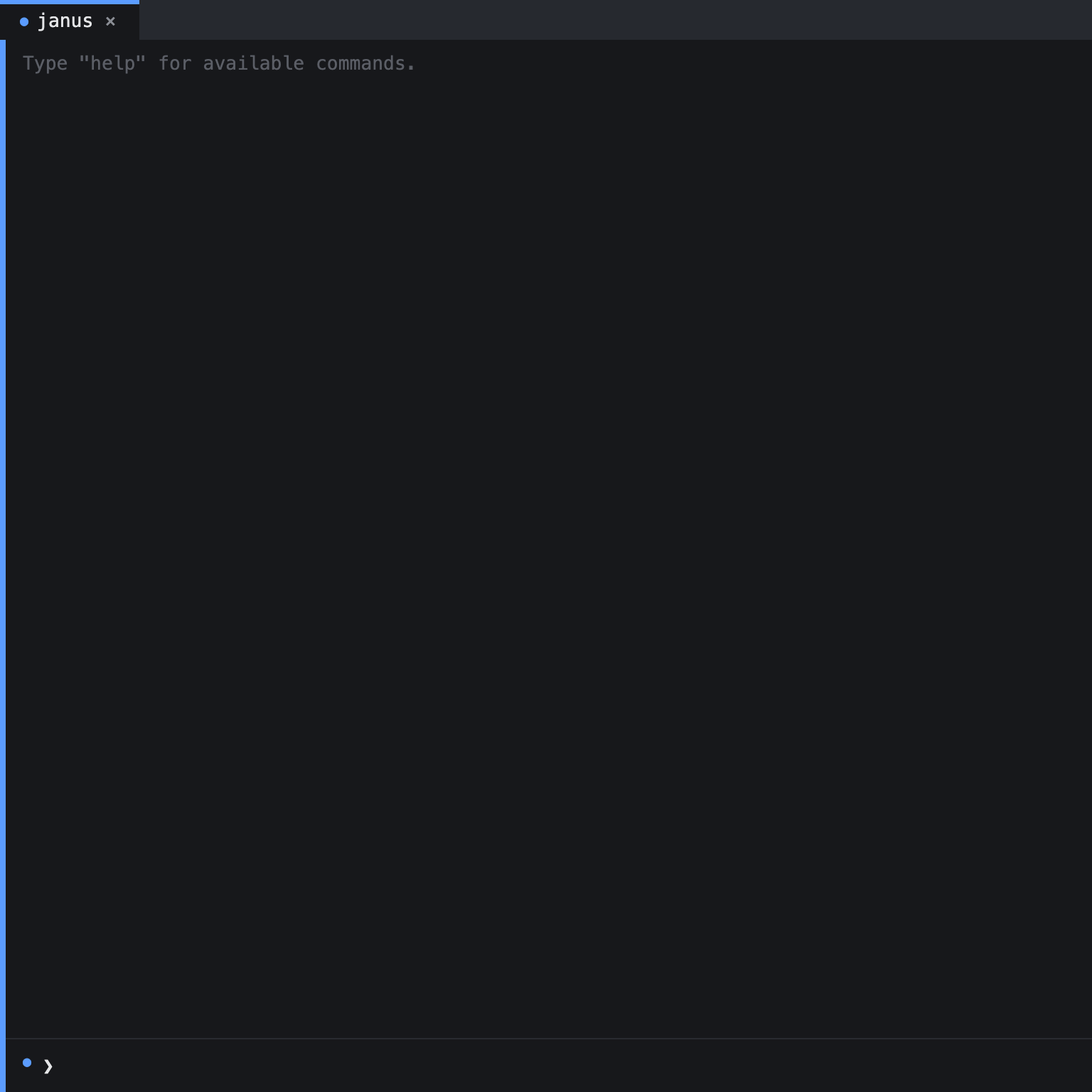
Use these shortcuts to run commands, move between tabs, scroll transcripts, and move focus through the Janissary layout.
The command bar accepts the shortcuts below while an agent tab is active. Ctrl+W also closes the current tab from an embedded web page. It does nothing while a picker, route chooser, or quit dialog is open.
| Key | Action |
|---|---|
Return | Execute the input line |
Ctrl+C | Quit the application |
← | Move the input cursor left |
→ | Move the input cursor right |
Shift+← / Cmd+Shift+[ | Switch to the previous tab |
Shift+→ / Cmd+Shift+] | Switch to the next tab |
Ctrl+← | Move the current tab one position left |
Ctrl+→ | Move the current tab one position right |
↑ | Walk backward through command history |
↓ | Walk forward through command history |
Shift+↑ / Ctrl+↑ | Scroll the transcript up with acceleration |
Shift+↓ / Ctrl+↓ | Scroll the transcript down with acceleration |
Ctrl+P | Scroll the transcript up one line |
Ctrl+N | Scroll the transcript down one line |
PageUp | Scroll the transcript up by half a terminal height |
PageDown | Scroll the transcript down by half a terminal height |
Escape | Reset the transcript scroll to the bottom |
Ctrl+R | Open the command history picker |
Ctrl+A | Open the task picker |
Ctrl+G | Open the fuzzy tab navigator, or close it if it is open |
Ctrl+E | Open the queue picker |
Ctrl+T | Expand or collapse the current tab's agent tool steps |
Cmd+F | Search the current tab's transcript |
Cmd+P | Open the Quick Open file finder |
Cmd+T | Open a new agent tab |
Tab | Complete a file path, agent name, connection, browser subcommand, or window ID |
Backspace / Delete | Delete the character before the cursor |
Move focus between application sections
The window can contain four application sections: a left sidebar, the center action area, a right sidebar, and the reporting section. The center is always present. A sidebar appears only when it contains a docked tab, and reporting appears only when it contains a monitor.
Press Shift+Tab to move focus to the next section in this order: left sidebar, center, right sidebar, reporting. The shortcut skips sections that are not present and wraps from the last present section to the first. The section's currently visible tab receives focus. If the center is already the only section, focus stays in the center.
Focus follows the section under the pointer too. Pressing Shift+Tab after clicking a docked tab therefore starts from that sidebar rather than from the center.
The focused section changes without sending a command to the application.
Shift+Tab works while a file navigator or harness tab has focus. It is handled before those views receive the key, so you can always leave them. A file navigator still captures its own arrow keys, Home, End, PageUp, PageDown, Enter, Space, and printable characters for tree navigation. A harness receives its other keystrokes, including Ctrl+C.
Bare Tab keeps its command-completion behavior in the command bar.