Image viewer
open <image> shows an image in its own tab — all the common formats work: PNG, JPEG, GIF, WebP, BMP, SVG, AVIF, ICO.
open diagram.pngIf that image is already open, open <image> focuses the existing image tab instead of creating a duplicate.
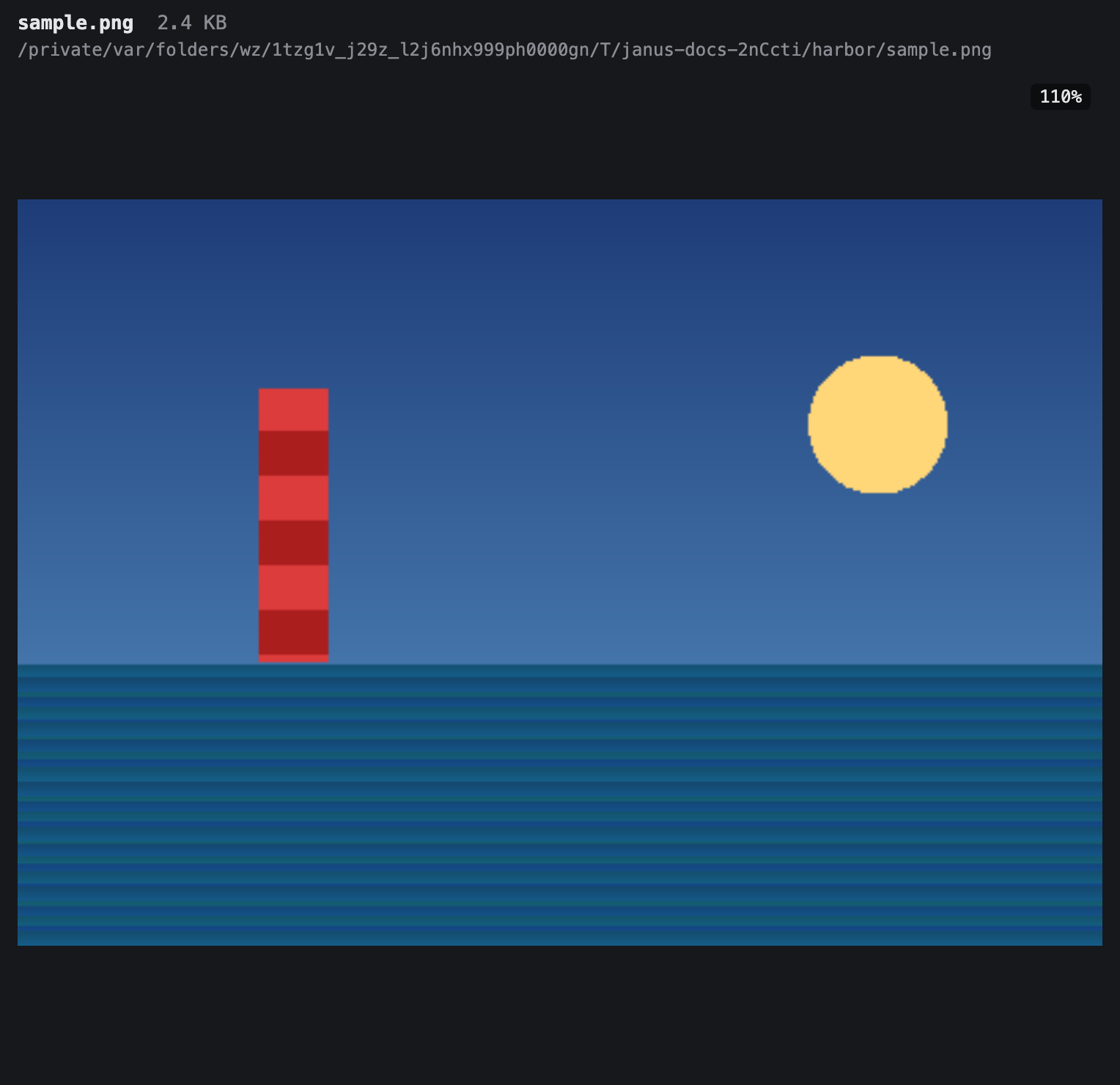
The tab shows a compact header with the file's name, size, and location, and the image fills the space below, fit to the tab: a landscape image spans the full width, a portrait one the full height. The tab is labeled image in the strip (the filename is in the header) and carries a × close button.
Zoom and pan
| Control | Action |
|---|---|
PageUp / scroll wheel up | Zoom in, 10% per step |
PageDown / scroll wheel down | Zoom out, 10% per step |
Escape | Reset to 100% and center |
| Arrow keys | Pan (hold to keep panning) |
| Click and drag | Pan freely |
100% is the fit-to-tab size; zoom runs from 10% to 800%. While zoomed away from 100%, the current percentage is shown on the view. There are no scrollbars — reaching the out-of-view parts of a zoomed image is what panning is for. Panning with a held arrow key is continuous, and dragging follows the mouse.
Editing an image
Click the pen button in the header to swap the viewer for an editing canvas. edit <image> opens a tab straight into it, as does Shift+double-clicking an image in the file navigator.
Editing is geometry only, with five controls in the toolbar:
| Control | What it does |
|---|---|
| Crop | Draws a rectangle over the whole image. Drag it, or pull its edges and corners, and it reports the pixel size it will produce as you go. It can't be dragged outside the image. |
| Rotate left / Rotate right | Turns the image 90°, swapping its width and height. |
| Flip horizontal / Flip vertical | Mirrors it about that axis. |
Rotate and flip take effect straight away. Crop waits: adjust the rectangle, then Apply crop to commit it or Cancel crop to drop it. The header shows the current dimensions while you work.
There's no drawing, text, filter, or resize, and you can only edit one image at a time.
Undo and redo
Your edits are a list of steps replayed from the original, so nothing is baked in until you save. Undo and Redo in the toolbar, or Cmd+Z and Cmd+Shift+Z (Ctrl+Z / Ctrl+Shift+Z), walk that list. Making a new edit after undoing discards whatever was waiting to be redone. Like the zoom keys, the undo chords only reach the image tab on screen.
Saving
Save, or Cmd+S / Ctrl+S, writes the edited image over the original file. There's no Save As: the destination is always the file you opened. The button stays dim until you have something to save, and the header confirms with Saved <name> for a few seconds afterwards. Your edits stay live, so you can keep working and save again.
Every save is a PNG, whatever the file started as. Two consequences are worth knowing before you save: an animated GIF flattens to the single frame you're looking at, and an SVG is rasterized at the size it was rendered, losing its vector nature. Both replace the original file.
Leaving the editor
Done, or Escape, returns to the viewer without discarding anything. The edit list stays live, the tab stays marked unsaved, and the pen button brings you back to exactly where you left off.
Unsaved edits aren't dropped quietly the way zoom and pan are. Closing a tab that holds them asks first, with Save, Don't Save, and Cancel — the same dialog an editor tab raises, on every close path, and they hold up quit and a browser reload too.
Lifecycle
An image tab is a live view, not saved state: zoom and pan reset when you switch away to another image tab, and image tabs are not restored by janus --relaunch. An edit in progress isn't saved either — it belongs to the open tab. Closing one — via its × button or close — just removes the view; the file is untouched. Only files you've explicitly opened are ever served to the viewer.
To hand an image to the OS viewer instead, use open external <image> — see Opening files and pages.