File navigator

files opens a directory tree in its own tab:
files            rooted at the tab's working directory
files src        rooted at src
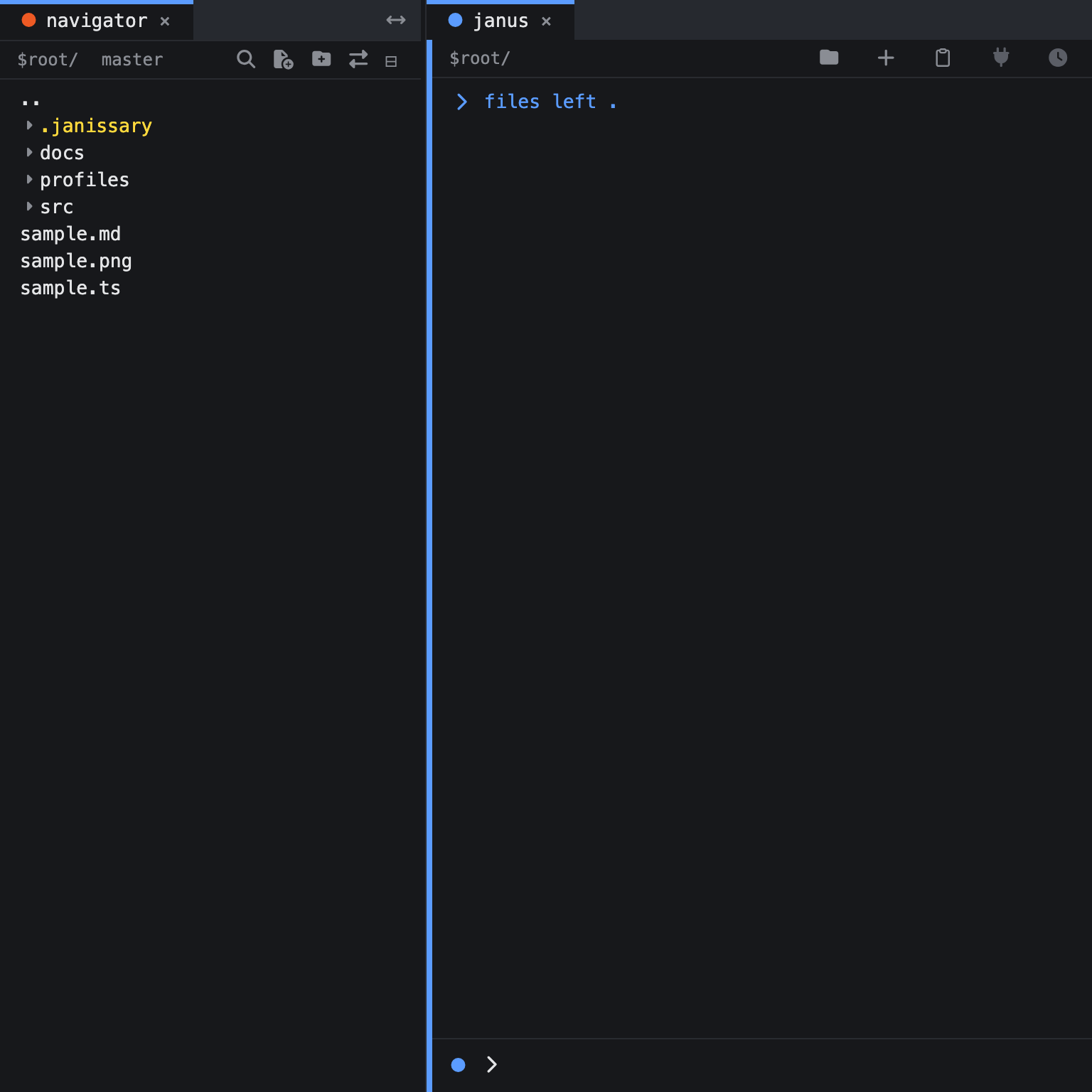
files left       rooted at the working directory, docked in the left sidebar
files right src  rooted at src, docked in the right sidebar
Directories sort before files, both alphabetically. A few VS Code default excludes (.svn, .hg, .DS_Store, Thumbs.db) are hidden; .git and every other dotfile show like any other entry. A directory's contents are only read when you expand it, so a huge node_modules costs nothing until opened. The tab is labeled files in the strip and placed at the start of its group, so the tree sits left of the tabs it opens — except while docked to a sidebar, when it leaves the strip entirely (see below).
If a tree is already open on the same root, files focuses it rather than opening a duplicate — or, with left/right, moves it into that sidebar. A target that isn't a directory prints files: <path>: not a directory. A target that doesn't exist yet still opens a tab, showing "Looking for <path>…" until the directory shows up — handy for pointing a navigator at a directory a build or clone is about to create.
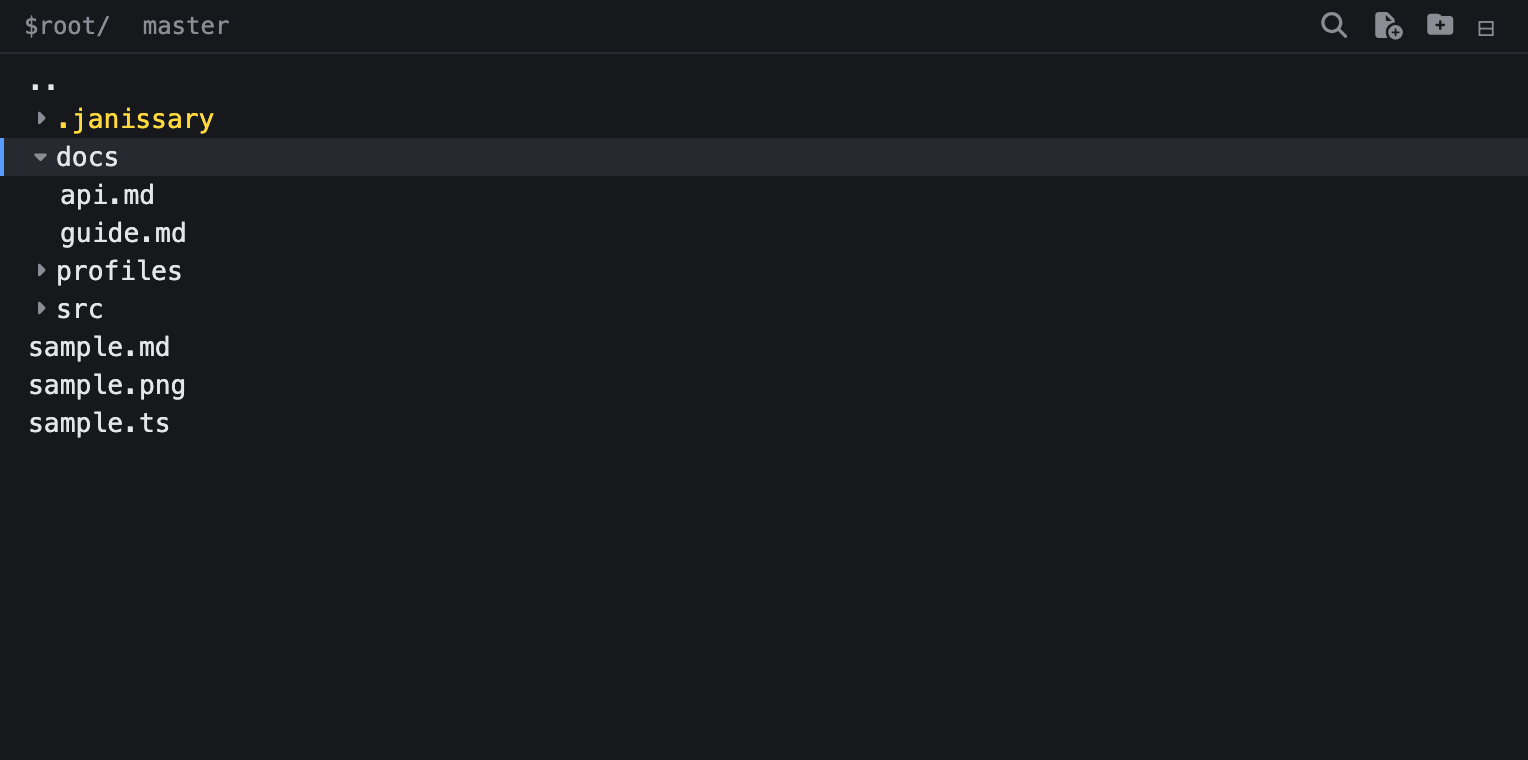
Opening from a tab's metadata row
Every agent tab and harness tab has a 📁 button on the right of its metadata row. Its tooltip is "Open file navigator in this workspace" on a workspaced tab and "Open file navigator here" otherwise. Clicking it opens a file navigator rooted at that tab's own working directory — a one-click alternative to typing files in <label>. Shell tabs don't have this button.
Unlike the bare files command, which opens into the center tab strip, a navigator opened from the button — when none is open yet — opens docked in the left sidebar by default. If a navigator is already open, clicking the button doesn't open a second one: it retargets the existing navigator (the most recently focused one, if you have more than one) to the clicked tab's working directory, leaving it exactly where it sits — docked or not. Either way, focus moves to the navigator.
Remote workspaces
The 📁 button on a remote agent or harness opens that tab's workspace on the remote host, using its existing SSH connection. files in <label> does the same when the label belongs to a remote tab. There is no files on <address> form: start an agent or harness on the host first, then navigate through that tab. The tree's header shows the host chip before its remote path and branch; hover over the chip for the full destination.
A remote tree has the same browsing and editing tools as a local one: directory watches, file search, branch and git-status details, open and edit, new file and folder, rename, delete, drag-to-move, copy/cut/paste, and undo/redo. The work happens inside the remote workspace. Opened files use their ordinary viewer or editor, and an editor save writes back to the remote host. If the write fails, the editor stays marked as changed and the notifications feed explains why. Choosing Open externally is refused because it runs outside that save route; plugin-added file actions are unavailable for the same reason.
Moves and copies stay on one machine. A drag onto a tree on another host has no drop highlight, and a cross-host paste is refused without changing anything or clearing the clipboard marks. Dragging a remote row into a command bar or editor inserts a host-qualified absolute path such as devbox:/srv/project/src/index.ts; local rows still insert relative paths.
A navigator opened from a remote tab's 📁 button closes when that tab closes, even if another joined agent keeps using the shared connection. Retargeting the navigator to a local directory removes that tie. A dropped or explicitly closed SSH connection closes every tree and tab using it. Remote trees are not restored by a profile or janus --relaunch.
Docking to a sidebar
A file navigator can live in three places: the central tab strip (the default), the left sidebar, or the right sidebar. files left [path] and files right [path] open (or move) a tree straight into that sidebar; a directory literally named left or right is still reachable with a path form, e.g. files ./left.
While docked, the tree leaves the tab strip and appears in its sidebar instead. Drag the up/down-arrow button at the right of the sidebar's tab gutter to resize it. Only one tree can be docked per sidebar — docking a second one into an occupied side sends the first back to the center strip rather than closing it. A docked tree is never the active tab; files <same path> (no left/right) brings it back to center and focuses it. See Tabs for more on sidebars.
The sidebars are shared with the notifications feed and the schedules tab, which dock the same way — a sidebar can hold a tree together with a notifications feed and/or a schedules tab, all at once, side by side in that sidebar's own tab strip. Docking a second tree into an already-occupied side displaces the first tree back to center; it never displaces a different kind. See Tabs for how a shared sidebar's strip works.
Row detail modes
files with <mode> opens (or retargets) a tree showing a detail column beside each row, where <mode> is name, size, modified, or permissions:
files with size                rooted at the working directory, showing file sizes
files in claude with modified  rooted at claude's working directory, showing modified times
Every newly opened tree starts in name mode — just the filename, no extra column. The other three modes add a right-aligned value: size shows a compact size like 22b, 24k, 32M, or 5G; modified shows the last-modified time as Jul 13 23:29, with no year, so every value is the same width; permissions shows the permission string, drwxr-xr-x.
A row with nothing to show for the current mode — a directory in size mode, or anything the tree can't read — shows a blank column rather than a dash. The mode belongs to one tree; switching it doesn't affect any other open navigator. If a long filename and its value can't both fit, the filename keeps its full width and the value shrinks and then disappears, rather than the name getting truncated.
The header's detail button cycles a tree through the four modes, one click at a time, with a tooltip naming what the next click shows (Show size, Show modified, Show permissions, Show name only). Re-running files with <mode> on an already-open tree is a second way to switch it, and in/on/with clauses can combine in any order (files in claude on left with size).
A profile that saves this tree restores its detail mode along with its expanded directories and selection.
Opening the repository on GitHub
When the tree is rooted inside a git repository whose origin remote points at GitHub, its header shows a GitHub button (tooltip "Open on GitHub") before the search button. Clicking it opens the repository's commits page for the branch you currently have checked out, in a page tab inside the app rather than your OS browser.
The button doesn't show up for a directory with no origin remote, a remote that isn't a github.com URL, or a branch the app can't determine. It refreshes along with the rest of the header whenever the tree does.
Pulling the latest from origin
Anywhere the header shows a branch name, it also shows a Pull from origin button (tooltip "Pull from origin"), between the GitHub button and the search button. Clicking it runs git pull in the tree's own folder, then refreshes the tree: rows are re-read from disk and the branch text and status colors are recomputed, so what you see matches what the pull brought down. For a tree rooted on a remote host, the pull runs there, inside the workspace.
The button tells you how the pull is going. Its icon spins while the pull runs, turns green when the pull works, and turns red when it doesn't — the same signals a git-synced editor tab's sync icon gives. Hovering names the state. A few seconds after the pull settles the button goes back to normal, so a green or red button always means "just now" rather than "at some point today".
Clicking again while a pull is still running does nothing, so overlapping pulls can't collide.
Either way it turns out, the pull reports one line in the notifications tab. A pull that works reads Pulled from origin: followed by git's own summary — Already up to date. when nothing came down, or the count of what changed when something did. A pull that fails (no upstream branch, a merge conflict, an authentication problem) leaves the tree untouched and reads Could not pull: followed by git's own error. Outside a git repository there is nothing to pull, and the button doesn't appear.
Finding a file by name
Click the header's magnifying-glass button to open a search pop-up. Type part of a filename and the input shows a ghost completion of the best-matching file, with its full path (relative to the tree root) below, prefixed with > — for example, > src/tasks.md. Matching is a case-insensitive substring on the filename, with a name that starts with what you typed ranked first; only the single top match is shown, there's no results list.
Press Tab to accept the ghost completion into the input without closing the pop-up. Press Enter to jump to the top match: it expands every ancestor directory, selects the file's row, and scrolls it into view. Press Escape, or click outside the pop-up, to close it without changing the tree. An empty query shows nothing below the input; a query with no matches shows (no matching files) instead of a path.

The tree stays current
Every visible directory is watched: files that appear, disappear, or get renamed show up in the tree within about a second, even during a burst of changes like a git checkout. If watching stops working for a directory (permissions, exotic filesystems), the tree keeps working — collapse and re-expand to refresh by hand.
Inside a git repository, a file's name is colored by its git status: green for a staged change, red for an unresolved merge conflict, and yellow for anything else changed — an unstaged modification or an untracked file — the same way an editor's Explorer highlights dirty files. A directory takes the color of the most urgent status found beneath it (a conflict beats a staged change, which beats a plain change), even deep inside a collapsed folder, so you can spot changes without expanding everything. Coloring always reflects the git repository the navigator's own root sits in, so it stays accurate when you have more than one navigator open on different folders or repositories. This coloring refreshes along with the tree. A directory that isn't in a git repository simply shows no coloring — nothing is colored and no error appears.
Mouse
| Interaction | Behavior |
|---|---|
| Click a row | Select it |
| Double-click a file | Open it (same as open) |
Shift+double-click a file | Edit it (same as edit), even if its normal opener is a viewer |
| Double-click a directory | Expand or collapse it |
Double-click the .. row | Re-root the tree one directory up |
| Right-click a row | Open its context menu without changing the selection |
| Header ⊟ button | Collapse everything back to the root |
| Header ⇄ button | Cycle location: left sidebar → center tab strip → right sidebar → left sidebar |
| Header × button | Shown while docked; closes the tree (a docked tree has no strip × of its own) |
| Press a row, drag, and release over a directory (or any file inside it) | Moves the dragged file or directory into that directory on disk |
Click a row to replace the selection, and see Selecting more than one row below for building a bigger one.
Files opened from the tree land in the same group as the tree tab — including while the tree is docked to a sidebar; opened files still land in that group.
If a file type has no built-in opener, double-clicking the file shows a picker with Edit as text and Open externally. Choose the action you want, or press Escape to close the picker.
Right-click a file for Open, Edit, and Open with, followed by the usual file actions. Edit runs the same edit command as the command bar: ordinary files open in the text editor, while images open directly in the image editor. With multiple images selected, right-clicking one of them makes Open or Edit apply to every selected image. Otherwise, each action affects only the row you right-clicked, and Edit is not shown for directories. Open with lets you choose the registered viewer, text editor, or external application instead. The menu also provides Copy, Paste (when the clipboard is armed), Duplicate, Rename, Delete, New file, and New folder; the .. row omits actions that cannot apply to it.
Selecting more than one row
Delete, copy, cut, paste, and drag-and-drop all act on the whole selection, so building one is usually the first half of the job.
With the mouse: hold Shift while you click to select the visible range from the current anchor to that row, or hold Cmd (Ctrl on other platforms) to add or remove a single row. A click also makes that row the keyboard cursor and the new range anchor.
From the keyboard: Shift+↑ and Shift+↓ build the same range a Shift-click builds. Each press moves the cursor one visible row and selects everything between the anchor and the new cursor, so reversing direction shrinks the range rather than growing it. At the top or bottom row nothing happens: the range never wraps, and what you already selected stays selected. Shift with Home, End, Page Up, or Page Down collapses back to a single row instead.
Cmd+A (Ctrl+A) selects the current row's siblings: every visible row in the same directory, leaving the cursor where it is. A sibling directory that happens to be expanded contributes only its own row, not its contents. On the .. row it does nothing.
The .. row is never part of a selection.
Moving files by drag-and-drop
Press down on a selected row, drag it onto a directory row (or any file row inside that directory), and release to move the selection into that directory. Dragging an unselected row first selects only that row. A small label follows the cursor and shows the lead name plus the number of additional items. The targeted directory highlights. Dropping onto a selected item, one of its descendants, or an item already in the destination does nothing for that item. Dropping onto a file in the tree's root moves the selection into the root. Releasing over empty space, losing window focus, or pressing Escape cancels the drag with nothing moved.
Before a bulk move starts, duplicate paths and .. are removed. When a selected directory is an ancestor of another selected path, the descendant is removed too. Items already in the destination are also removed from that move. A destination at or inside a selected directory blocks the whole move. If two selected items have the same output name, both stay in place and appear in the failure report.
For one item, a name conflict opens a dialog with Overwrite and Cancel. A bulk move checks all destinations first. If any conflict exists, the dialog says Some items already exist in "<folder>". and offers Overwrite all, Skip conflicts, and Cancel. Other items still move when an individual item fails; failures are reported as one line in the notifications feed instead of a dialog: Could not move <failed> of <total> items: <names>, naming up to three failed items and truncating the rest with … and N more. The line also tells you why the operation failed and what to try next. If items failed for different reasons, each shown name is paired with its own reason.
You can also drag selected rows onto the command bar of the active tab to insert their paths at the caret without moving anything. Local paths are relative to the active tab's working directory; remote paths use <host>:<absolute path on that host>, separated by single spaces, and replace any selected command text. This works when the navigator is docked and a plain tab is active in the center. It does not work for a view tab, harness tab, the file tree itself, or transcript search. Paths are inserted exactly as computed, without quotes, even when a name contains spaces.
Drag selected rows onto an active plain-text editor to insert their tree-relative paths, separated by newlines, as one editor undo step. The editor does not highlight during the drag. Inactive or hidden editors are not drop targets.
Dropping hands keyboard focus to the editor and leaves the cursor just after the path it inserted, so you can keep typing without reaching for the mouse.
Creating files and directories
Click the header's New file button, or press Cmd+N (Ctrl+N) while the tree has keyboard focus, to open a fresh, unsaved editor tab named untitled.md. The target directory follows your current selection: a selected directory creates the file inside it, a selected file creates it in that file's directory, and no selection (or the .. row) creates it at the tree root. If that directory already has an untitled.md, the next free name opens instead (untitled-2.md, and so on).
Rename the new tab's label to name the file — the typed text becomes the filename, with no extension added. Saving writes to that name; if another new-file tab already saved to it first, your save silently falls back to the next free name instead of overwriting it.
Click the adjacent New directory button to create a folder using the same selection rules. It is named untitled, or the next available name (untitled-2, and so on) if that name already exists. When the new untitled directory appears, it's selected automatically and its name is ready to edit right away; if a naming collision gave it a different name instead, select and rename it yourself.

Renaming a file or directory
Press Cmd+R (Ctrl+R) while a row other than .. is selected to turn its name into an editable field, pre-filled with the current name. Edit it and press Enter to rename the file or directory on disk in place — an unchanged or empty name is a no-op that just closes the field. Escape, or clicking elsewhere, cancels without changing anything. If the new name collides with a sibling already in that directory, the same Overwrite/Cancel dialog used for drag-and-drop moves appears. A rename doesn't join the undo/redo history described below.
If the filesystem refuses the rename, the item stays in place. The notifications feed names the item, explains the cause, and suggests what to try next.
If the renamed file is already open in an editor tab, that tab's name and path update automatically, with unsaved content and cursor position preserved.
Copying, cutting, and pasting
Cmd+C (Ctrl+C) copies the selected files and directories onto an app-wide clipboard. Cmd+X (Ctrl+X) cuts them instead, marking them to move rather than duplicate. Cmd+V (Ctrl+V) pastes into the directory your selection implies — a selected directory pastes inside it, a selected file pastes into its containing directory, and no selection (or the .. row) pastes at the tree root.
The clipboard is shared across the whole app, so you can copy in one navigator and paste into any other path on the same host. A paste onto a different host is refused in the notifications feed, moves nothing, and leaves the clipboard marks in place. Copying with nothing selected leaves the clipboard untouched, and pasting an empty clipboard does nothing.
Rows on the clipboard are marked in every open navigator that shows them, until you paste, copy or cut something else, or press Escape to clear it. A cut shows its rows dimmed with a dashed outline; a copy shows its rows at full strength with a dashed outline, since the originals aren't going anywhere. Pasting a cut selection empties the clipboard, so pasting again does nothing; pasting a copy leaves the clipboard as-is, so you can paste the same selection again elsewhere.
Pasting a copy back into its own directory duplicates it, using the same -2 naming as elsewhere in the app (report.md → report-2.md). Pasting a cut back into its own directory does nothing. Any other name collision opens the same Overwrite/Cancel, or Overwrite all/Skip conflicts/Cancel, dialog a drag-and-drop move uses. A paste whose source is gone, or whose destination is inside what you're copying, is reported through the notifications feed like any other failed operation.
A paste is one step on the tab's undo/redo stack: Cmd+Z reverses it and Cmd+Shift+Z re-applies it. Undoing a copy-paste deletes what it created; undoing a cut-paste moves the items back to where they came from.
Copy and Paste are also available from a row's context menu, along with Duplicate, which makes that in-place copy in one step: right-click a file or directory, choose Duplicate, and the copy appears beside it under the next free -2 name — a directory brings everything inside it. Duplicate never asks and never overwrites, undoes with Cmd+Z like any other paste, and leaves whatever is on your clipboard alone. Cut remains keyboard-only; dragging is the mouse route for moving files and directories.
Keyboard
A focused tree captures these keys for itself (tab-switching and other Ctrl/Cmd chords still work):
| Key | Behavior |
|---|---|
↑ / ↓ | Move the selection |
Shift+↑ / Shift+↓ | Extend the selection by one row (see "Selecting more than one row" above) |
→ | Expand a collapsed directory; from an expanded one, re-root the tree there; open a file |
← | Collapse an expanded directory; otherwise jump to the parent |
Enter / Space | Open a file, toggle a directory, or (on ..) go up |
Shift+Enter | Open the selected file in the editor |
Home / End | First / last visible row |
PageUp / PageDown | Move by a screenful |
| Type letters | Jump to the next row starting with what you typed |
Backspace / Delete | Open a confirmation dialog to delete the selected file or directory |
Cmd+Z / Ctrl+Z | Undo the most recent move made in this tab |
Cmd+Shift+Z / Ctrl+Shift+Z | Redo the most recently undone move |
Cmd+N / Ctrl+N | Create a new file (see "Creating a new file" above) |
Cmd+R / Ctrl+R | Rename the selected file or directory in place (see "Renaming a file or directory" above) |
Cmd+A / Ctrl+A | Select the current row's siblings (see "Selecting more than one row" above) |
Cmd+C / Ctrl+C | Copy the selection onto the clipboard |
Cmd+X / Ctrl+X | Cut the selection onto the clipboard |
Cmd+V / Ctrl+V | Paste the clipboard into the directory the selection implies |
Deleting uses the same selection normalization as moving. One item asks Delete "<name>"?. Multiple items ask Delete <count> items?. Both dialogs offer Delete and Cancel. A confirmed bulk delete continues after individual failures, reported as one line in the notifications feed instead of a dialog: Could not delete <failed> of <total> items: <names>, naming up to three failed items and truncating the rest with … and N more. The line also gives the cause and what to try next. Deletion is recursive for directories and cannot be undone.
Undo and redo only apply to moves. Each tree keeps its own undo/redo history in memory for as long as it stays open; closing it clears that history. One bulk move is one history step. Undo reverses its successful moves in reverse order, and redo reapplies them in forward order. A new move clears the redo stack. Grouped undo and redo use Overwrite all, Skip conflicts, and Cancel if destinations now contain conflicts. Failed and skipped items stay available for a later retry.
Like other view tabs, a file navigator is a live view — closed with its × button or close, and not restored by janus --relaunch.
A profile brings a local tree back the way you left it. profile save records which directories you had expanded, where the cursor was, and every row you had selected; profile launch puts them back, silently skipping anything that has since been deleted. Remote trees are omitted because their workspace and signed-in SSH session no longer exist. The undo/redo history is not part of a profile — it stays in memory and dies with the tab.