Browser automation

The browser command drives a real Chromium browser from a tab, so you (or that tab's agent) can open a page, read its rendered text, run JavaScript against it, and capture a screenshot:
browser goto https://example.com
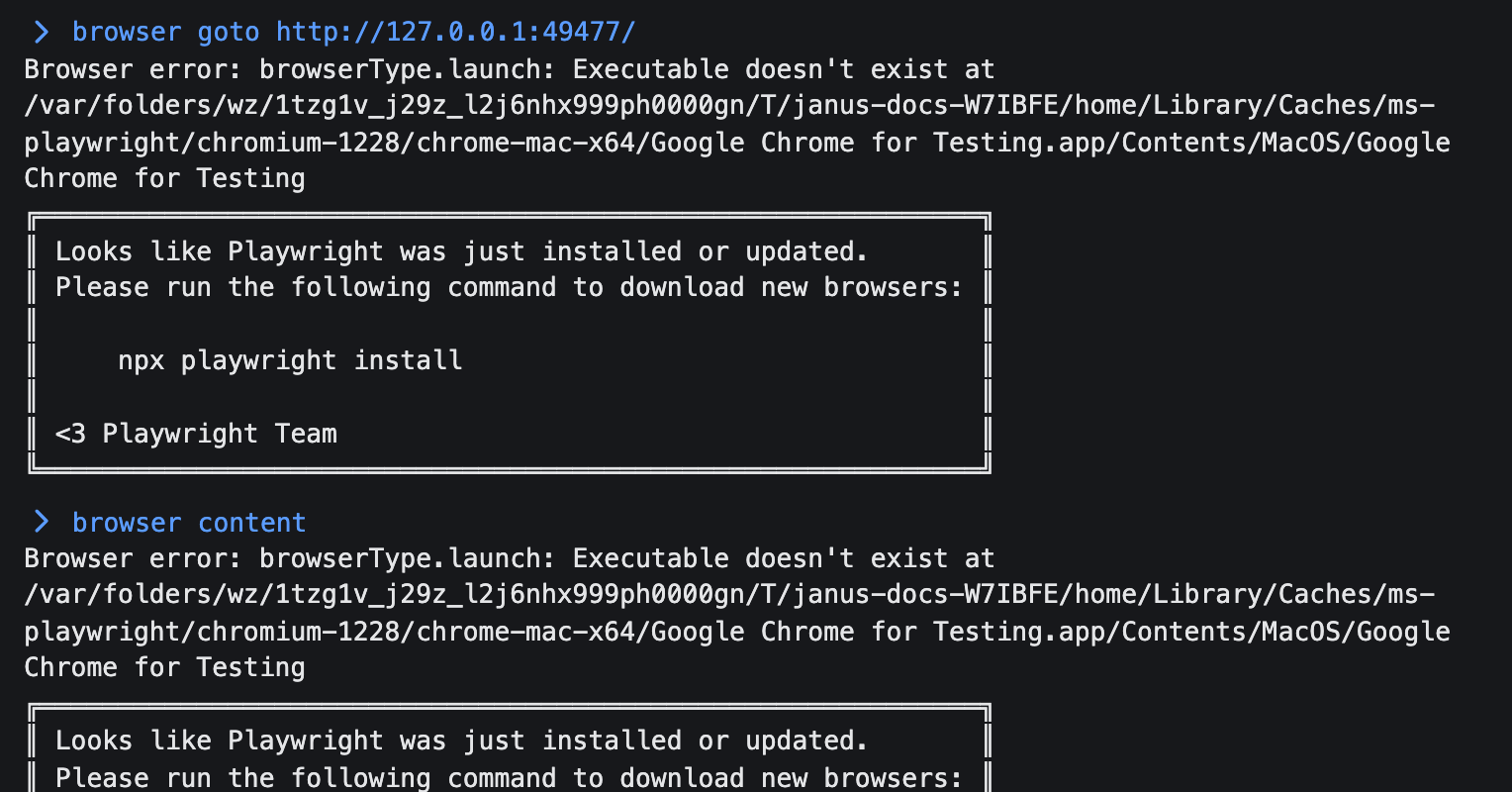
browser contentgoto, content, eval, and shot all auto-launch the tab's browser and open a window if none exists yet, so you rarely need to call open yourself.
| Subcommand | What it does |
|---|---|
browser open [name] [--headed|-H] | Launch this tab's browser if it isn't running, and open a new window |
browser list | List this tab's windows, marking the current one |
browser use <id> | Make a window current |
browser goto <url> | Navigate the current window |
browser content | Print the current page's rendered text |
browser eval <js> | Run JavaScript in the page and print the result |
browser shot | Screenshot the viewport to a PNG |
browser close [id] / browser window close <id> | Close the current window, or a specific one by id |
A bare browser prints a Usage: line listing every subcommand. See Tab completion for completing subcommands and window ids with Tab.
One browser per tab, with its own windows

Each tab that uses browser gets its own Chromium process, separate from every other tab. Inside that process, a window is an isolated browsing context (its own cookies and storage), addressed by an id like w1, w2, and so on, counting up as you open more. browser open opens a new window and makes it current; browser use w2 switches; browser list shows every open window with * marking the current one:
> browser list
* browser:w1
  browser:w2
Headless by default, headed on request

A tab's browser runs headless (no visible window) unless you launch it with browser open --headed (or -H). The mode is set once, when the browser first launches for that tab, and stays fixed for as long as that browser process runs. Asking for --headed against a browser that's already running headless does nothing but note that it's already headless. To switch modes, close every window in that tab (browser close for each, or browser window close <id>), which ends the process, then browser open --headed again.
Reading a page
browser content returns the page's title and rendered text (what a reader would see, not the raw HTML), cut off at roughly 10,000 characters with a note that it was truncated. That keeps a long page from overflowing the transcript. browser eval <js> runs JavaScript in the page and prints the result as JSON.
Screenshots
browser shot captures the current window's viewport to a PNG in a temporary directory and prints the path. On macOS it also opens the image in Preview; on other platforms only the path is printed.
Closing windows and browsers
browser close closes the current window; browser close <id> and browser window close <id> close a specific one (the two forms are equivalent). Closing a tab's last window ends that tab's browser process. Closing the tab, or quitting the app, closes every window it had open.
Browser windows are live, per-tab state: unlike a SQLite connection, they are not restored by janus --relaunch. Start with browser open again after a relaunch if you need one.